Muppy Templates
Muppy templates use the Jinja2 engine to dynamically generate configuration files.
Introduction
Templates allow you to:
- Generate systemd configuration files
- Create custom shell scripts
- Produce application configuration files
Template Types
| Type | Description |
|---|---|
systemd-unit |
Systemd unit file (.service) |
systemd-timer |
Systemd timer file (.timer) |
sqlquery |
SQL Query |
shellscript |
Bash/Sh Script |
cfgfile |
Configuration file |
Accessing Templates
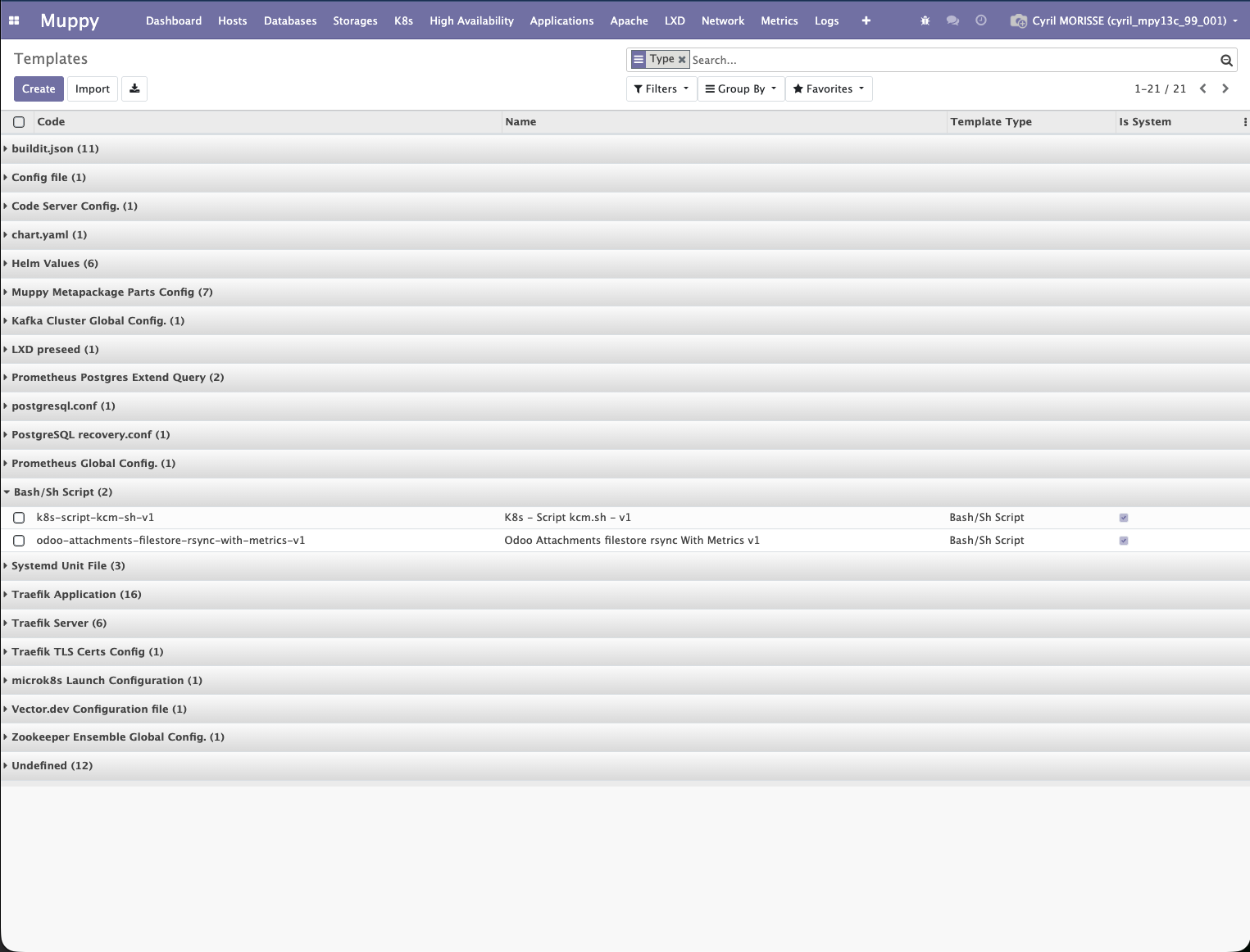
Templates are accessible via the Configuration > Templates menu.
Template Upload Wizard
The Template Upload Wizard allows you to render a template and upload it to a remote host.
Accessing the Wizard
- Go to Configuration > Templates menu
- Open a template
- Click the Upload to Host button in the header bar
Wizard Fields
| Field | Description | Example |
|---|---|---|
| Template | Selected template (read-only) | - |
| Host | Host where the file will be uploaded | my-server |
| Target Object | Muppy object injected as obj in the context |
mpy.dev_server,123 |
| Target Directory | Destination directory | /etc/systemd/system |
| Filename | File name | myservice.service |
| Owner (chown) | File owner | root:root |
| Permissions (chmod) | File mode | 644 |
| Additional Parameters | YAML/JSON parameters merged into context | See below |
| Run Asynchronously | Execute via message queue | true/false |
Template Context
The template automatically receives the following variables:
obj: The selected target object (if specified)template_obj: The template itselfget_system_parameter(): Function to access Odoo system parametersget_system_parameter_json(): Function to access system parameters as JSON- All parameters defined in "Additional Parameters"
Additional Parameters Example
Parameters can be provided in YAML or JSON format:
# YAML format
service_name: myapp
port: 8080
environment:
  DEBUG: "false"
  LOG_LEVEL: info
users:
  - alice
  - bob
{
  "service_name": "myapp",
  "port": 8080,
  "environment": {
    "DEBUG": "false",
    "LOG_LEVEL": "info"
  },
  "users": ["alice", "bob"]
}
Preview
Preview
Use the Preview tab in the wizard to test the template rendering before uploading it to the server.
The Render Preview button generates the final content without uploading.
Execution Mode
- Synchronous (default): The wizard waits for the upload to complete and displays the result
- Asynchronous: The upload is queued and executed in the background
Asynchronous Mode
Asynchronous mode is recommended for hosts with high network latency or when performing multiple successive uploads.
Jinja2 Syntax
Variables
{{ variable }}
{{ obj.field_name }}
{{ obj.related_id.name }}
Conditions
{% if condition %}
  content if true
{% elif other_condition %}
  alternative content
{% else %}
  default content
{% endif %}
Loops
{% for item in list %}
  {{ item }}
{% endfor %}

{% for key, value in dict.items() %}
  {{ key }}: {{ value }}
{% endfor %}
Filters
{{ variable | default('default_value') }}
{{ variable | upper }}
{{ variable | lower }}
{{ list | join(', ') }}
to_yaml Filter
The to_yaml filter is Muppy-specific and converts Python structures to YAML:
{{ my_dict | to_yaml }}
Template Examples
Systemd Unit Template
[Unit]
Description={{ obj.description }}
After=network.target
{% if obj.requires %}
Requires={{ obj.requires }}
{% endif %}

[Service]
Type=simple
ExecStart={{ obj.execstart_script }}
{% for key, value in environment.items() %}
Environment="{{ key }}={{ value }}"
{% endfor %}
User={{ obj.user | default('root') }}
WorkingDirectory={{ obj.working_directory | default('/opt') }}
Restart={{ obj.restart | default('on-failure') }}

[Install]
WantedBy=multi-user.target
Shell Script Template
#!/bin/bash
# Auto-generated script
# Date: {{ template_obj.create_date }}

SERVICE_NAME="{{ service_name }}"
PORT="{{ port }}"

echo "Starting $SERVICE_NAME on port $PORT"

{% for cmd in startup_commands %}
{{ cmd }}
{% endfor %}

exit 0
YAML Config Template
# Configuration for {{ obj.name }}
server:
  host: {{ obj.host_id.ip_address }}
  port: {{ port | default(8080) }}

database:
  host: {{ db_host }}
  name: {{ db_name }}
  user: {{ db_user }}

logging:
  level: {{ log_level | default('INFO') }}
  format: "%(asctime)s - %(name)s - %(levelname)s - %(message)s"
Best Practices
Template Naming
- Use descriptive codes:
myapp-systemd-unit,myapp-config-yaml - Prefix with the relevant module/application
- Suffix with the generated file type
Context and Variables
- Always provide default values with
| default() - Document expected variables in the template description
- Use
objfor dynamic data from the target object
Testing
Before deploying a template:
- Use the Test tab in the template form
- Fill in a
debug_object_idanddebug_context - Click Rendering Test to verify the result
- Use the wizard's Preview with actual parameters
System Templates
Templates marked as is_system = True are protected and should not be modified directly. Create a copy if modifications are needed.