Task Runs Execution
Task execution is managed by the Task Run object. A Task Run lets you define the execution parameters:
- of a Task
- on a Host
- with a set of Task Parameters
Info
Task Runs do not let you follow the execution of Tasks — they only let you define the execution parameters.
Execution tracking is available at the IMQ Messages level (see the Async Execution (Launch as Job) section below).
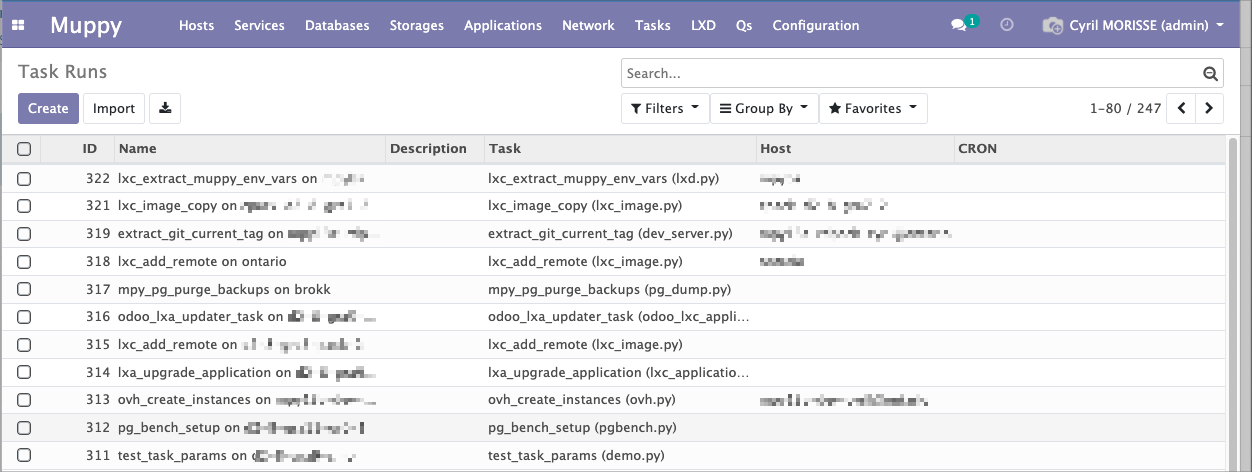
Task Runs List
The list of Task Runs is accessible via the Muppy / Tasks / Task Runs menu.
Creating / Editing a Task Run
The Task Run form lets you define and access the following elements:
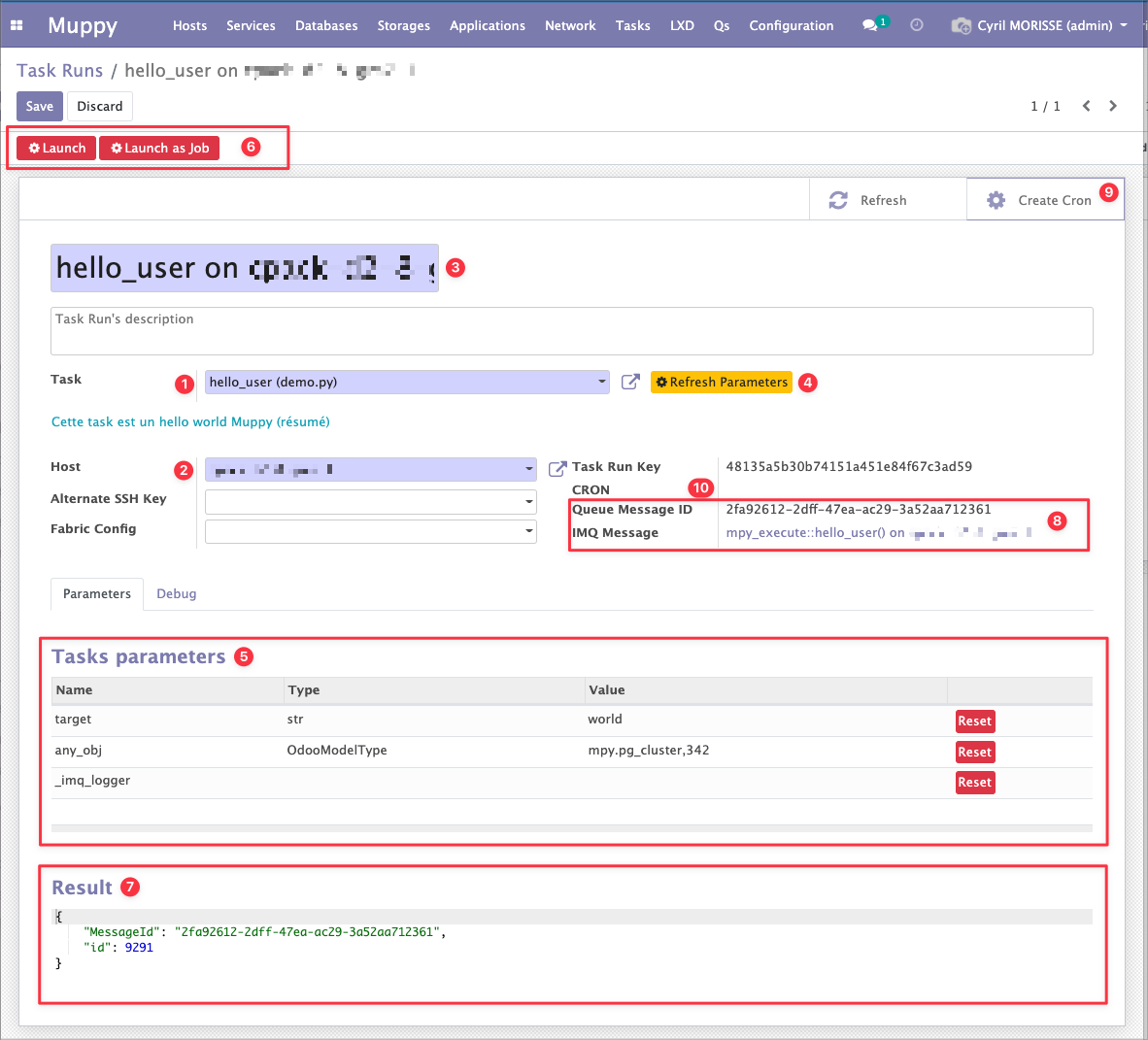
- The Task to execute.
- The Host on which the Task will be executed.
- The Task name — it is generated by Muppy from the Task and the Host, but it can be modified.
- ==Once the Task and the Host are set, you must click the Refresh Parameters button so that Muppy refreshes the list of Task Parameters (#5 in the next image).==
- The Task's execution parameters.
- Two buttons let you launch the Task Run, either:
- synchronously (Launch)
- asynchronously (Launch as Job) via a job whose execution is traced by an IMQ Message in a queue.
- Value returned by Launch.
- ID and link to the IMQ Message corresponding to the Task's execution job when the Task Run is launched asynchronously (with the
 button).
 - Button to create a scheduled task (a CRON) from the Task Run.
- Provides access to the Task Run's CRON when it exists.
Please refer to the contextual help for the other fields.
Entering Task Parameters
Click a parameter row to open the parameter entry form.
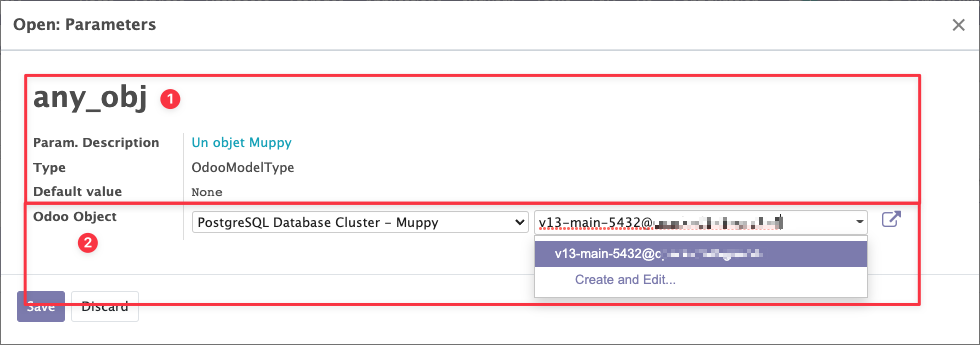
The upper part of the form (#1 in the image above) displays the parameter's name, type, description and default value.
The parameter value is entered in the last row (#2).
OdooModelType parameter
This parameter type lets the user pass a reference to a Muppy object to the Task — for example a PostgreSQL Cluster, a Host or an S3 Object.
Entering an OdooModelType parameter requires entering 2 values:
- The Muppy object type — PostgreSQL Database Cluster in the example above.
- The Muppy object itself — the
v13-main-5432@...cluster in the example.
Warning
Once you have finished entering the parameters, remember to click Save both at the parameter level and on the Task Run.
Asynchronous Task Execution (Launch as Job)
As a general rule, Muppy executes asynchronously — via a Jobs system — all Tasks whose expected execution time exceeds a few seconds.
Please refer to the following page for more details:
Async Execution (Launch as Job)
Periodic Task Run Execution (CRON)
Muppy can easily be configured to execute a Task Run periodically. This feature is useful — for example — to implement Backups (see the Scheduled Backups page). For a step-by-step walkthrough, see Scheduled Tasks Run.
To create a CRON:
- ==Open the form view of a properly configured Task Run.==
- Click the Create CRON (#9) button at the top right of the Task Run form. Muppy creates a CRON or Scheduled Task and references it in the CRON (#10) field.
- The numbers refer to the Task Run form view image above.
- Open the CRON by clicking the value of the CRON field (#10); the following form appears.
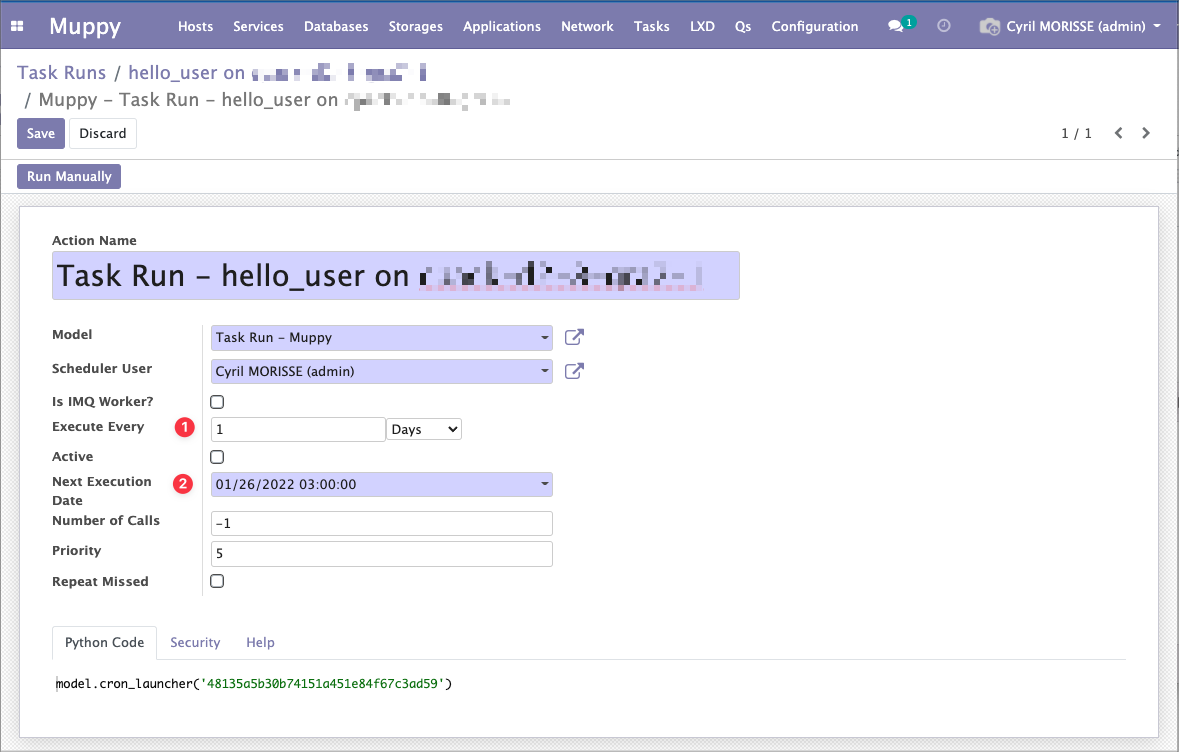
Adjust:
- Execute Every: sets the recurrence period.
- Next Execution Date: sets the date and time of the next execution. Subsequent executions will be scheduled by adding "Execute Every" to Next Execution Date. The time portion of Next Execution is used to set the execution time.
Warning
If you enter a Next Execution Date in the past, Muppy will execute the Task immediately once at the time of Save.
Then check Active and click Save to activate the CRON.
Danger
To deactivate a CRON, do not use Active — instead use the Remove CRON button in the Task Run.