Commission an OVH Instance
Commissioning creates one or more OVH Public Cloud instances and turns each into a fully managed Muppy Host. Muppy creates the instance on OVH, waits for it to boot, binds its public IP, waits for SSH, and (optionally) enrolls it — the result is a ==Managed== Host with no manual setup.
Commissioning creates real, billed instances
The wizard creates real OVH instances and starts billing. Each instance is provisioned, registered as a Host, and given an automatic decommission date.
1. Connect an OVH account
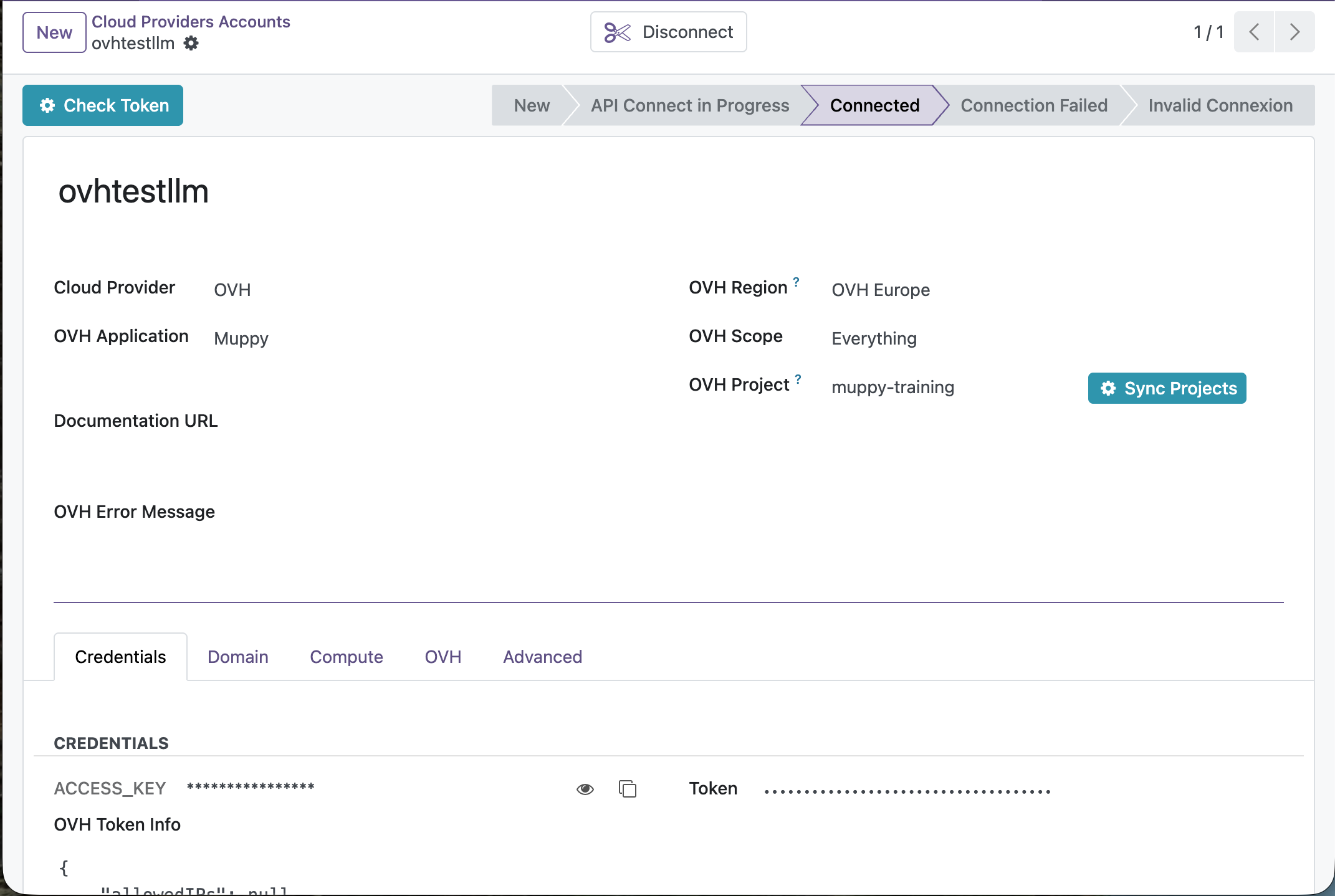
Commissioning uses an OVH Cloud Provider Account (an OVH API token).
Open Muppy ▸ Configuration ▸ OVH ▸ Cloud Providers Accounts and open (or create) your account. Use the Connect button, then Check Token in the header, until the Token status shows ==connected==.
2. Set the account's default catalog (recommended)
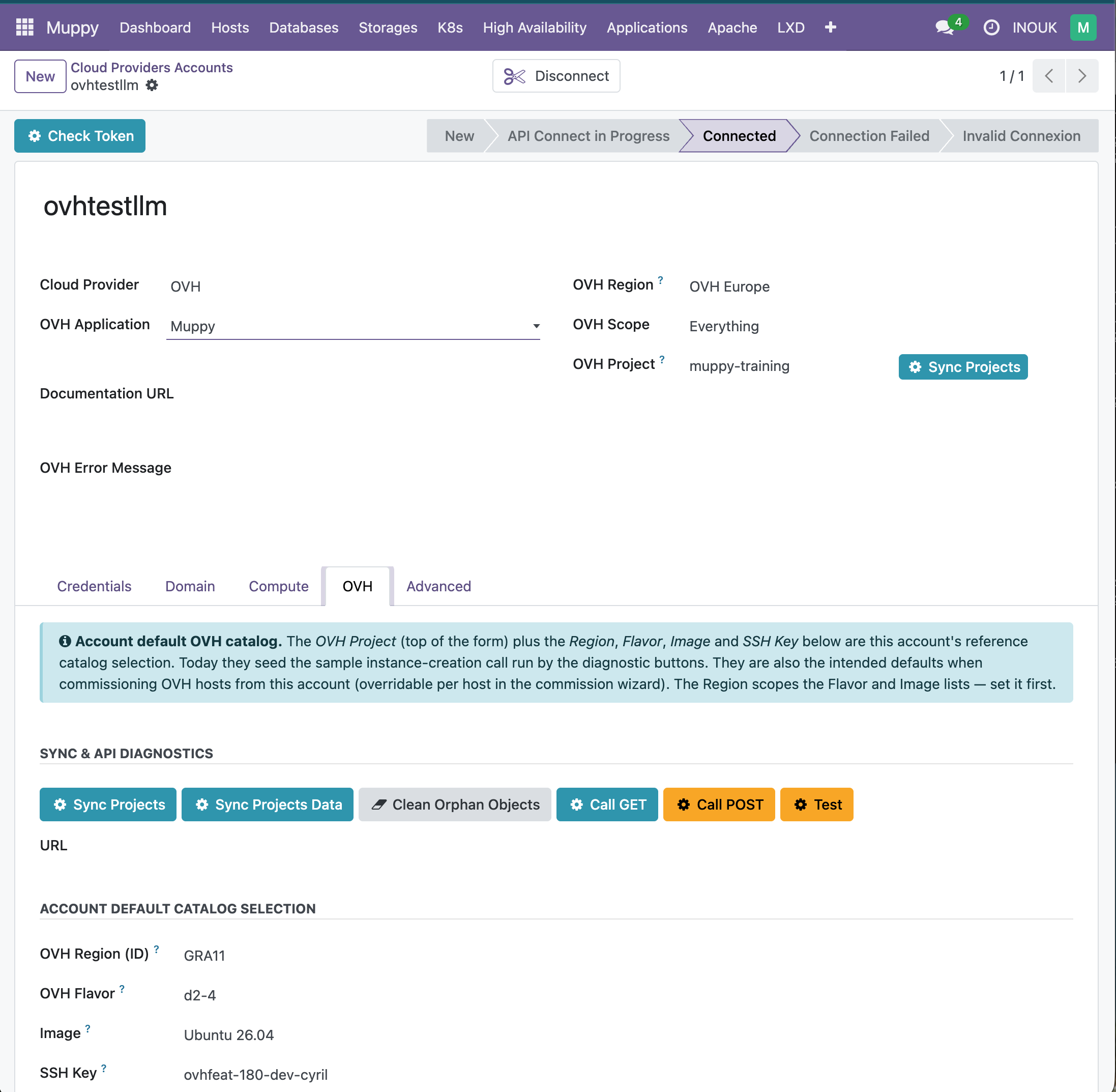
The account form's OVH tab holds the account's default catalog selection — the Project, Region, Flavor, Image and SSH Key the commission wizard pre-fills for you. Setting these once means you only type a name when commissioning.
- In the Sync & API Diagnostics group, click Sync Projects, then Sync Projects Data, to pull the OVH catalog into Muppy.
- Pick the default OVH Project (top of the form), then in the Account Default Catalog Selection group choose a default Region, Flavor, Image and SSH Key. The Region scopes the Flavor and Image lists, so set it first.
SSH Key — Muppy must hold the private key
The SSH Key you select is injected on the new instances. Muppy must hold the matching private key, because the post-provision step connects over SSH with it. If the private key is missing, provisioning cannot reach the new host.
3. Commission with the wizard
Open Muppy ▸ Hosts ▸ Provisionning ▸ Commission OVH Public Cloud Instance(s).
If you set the account defaults above, the wizard opens pre-filled — you only need to enter a name.
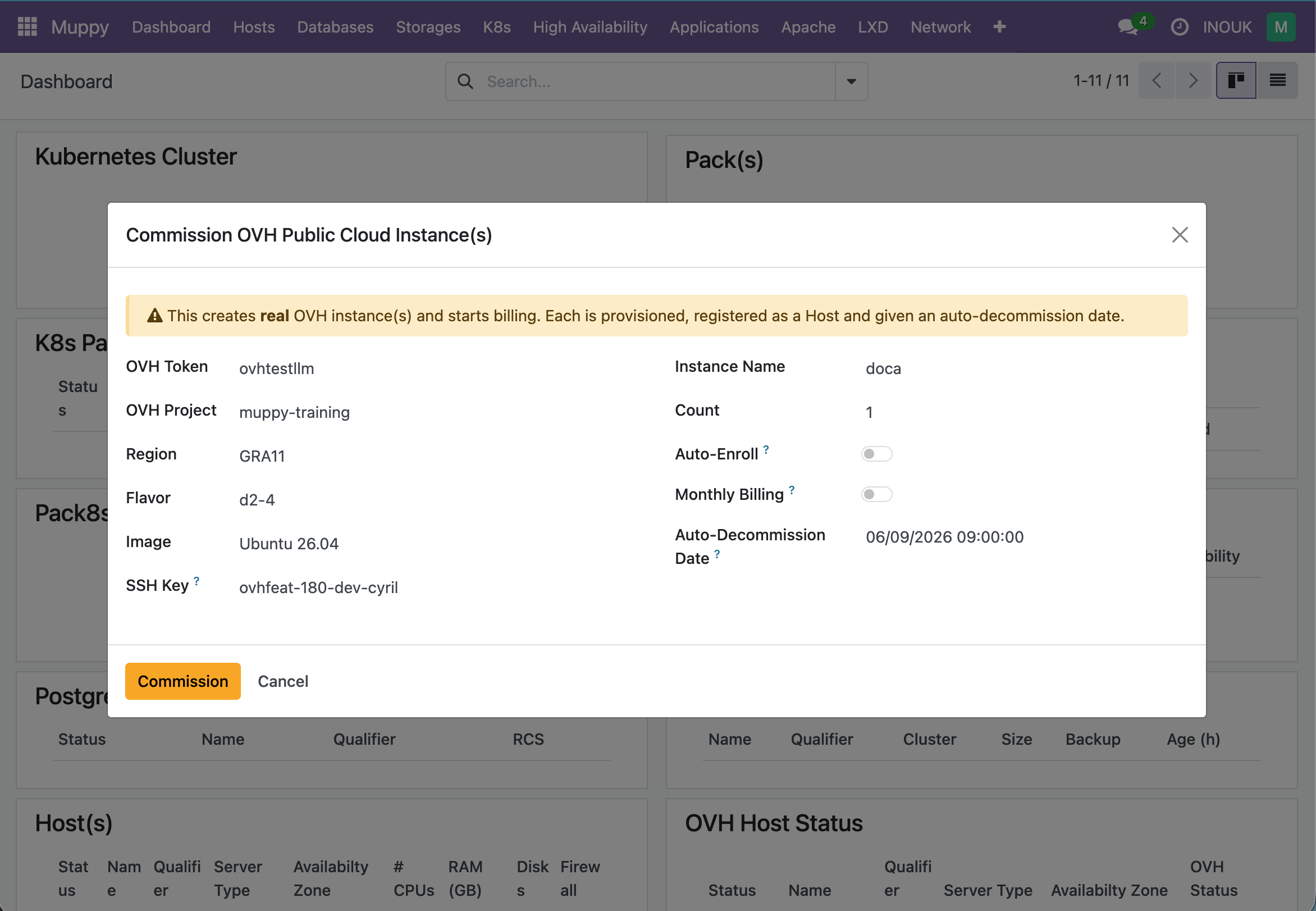
| Field | Meaning |
|---|---|
| OVH Token | The OVH account to use. Auto-selected when there is only one. |
| OVH Project / Region / Flavor / Image / SSH Key | The catalog selection — pre-filled from the account defaults; override any of them. Region scopes Flavor and Image, so set it first if you change it. |
| Instance Name (required) | The name of the instance(s) and Host(s). |
| Count | How many instances to create (default 1). |
| Auto-Enroll | When on, each Host is enrolled (apt upgrade, keys, reboot) once it is reachable over SSH, ending in the ==Managed== state. |
| Monthly Billing | Bill the instance(s) monthly instead of hourly. |
| Auto-Decommission Date | Optional. When the Host(s) will be auto-decommissioned. Leave empty to use the default horizon. |
Click Commission. The wizard closes and the work runs in the background.
What happens after you click Commission
Commissioning runs as a background job. For each instance, Muppy:
- Creates the instance on OVH and registers it as a Host (still booting).
- Sets the auto-decommission date and saves it immediately — a safety net, so the Host is tracked even if a later step fails.
- Waits until the instance is ACTIVE.
- Binds its public IP.
- Waits until it is reachable over SSH.
- If Auto-Enroll is on, enrolls it → the Host reaches ==Managed==.
This runs in the background
Commissioning is asynchronous — the wizard returns immediately and the work continues as a background task; the Host appears and progresses on its own.
Following progress
Track the job under Muppy ▸ Tasks (or Qs), or watch the new Host on its form: it appears as soon as it is registered (step 1) and advances ==New== → ==Work In Progress== → ==Managed==.
4. Host lifecycle — auto-decommission
Every commissioned Host is given an Auto-Decommission Date (a default horizon — 30 days unless your administrator changes it). This is a safety net for ephemeral cloud hosts, so they don't linger and keep billing.
On the Host form, the Lifecycle tab's auto-decommission controls (shown for cloud / linked hosts) let you:
- Schedule, Extend or Clear the auto-decommission date.
- Decommission Now — decommission the Host immediately.
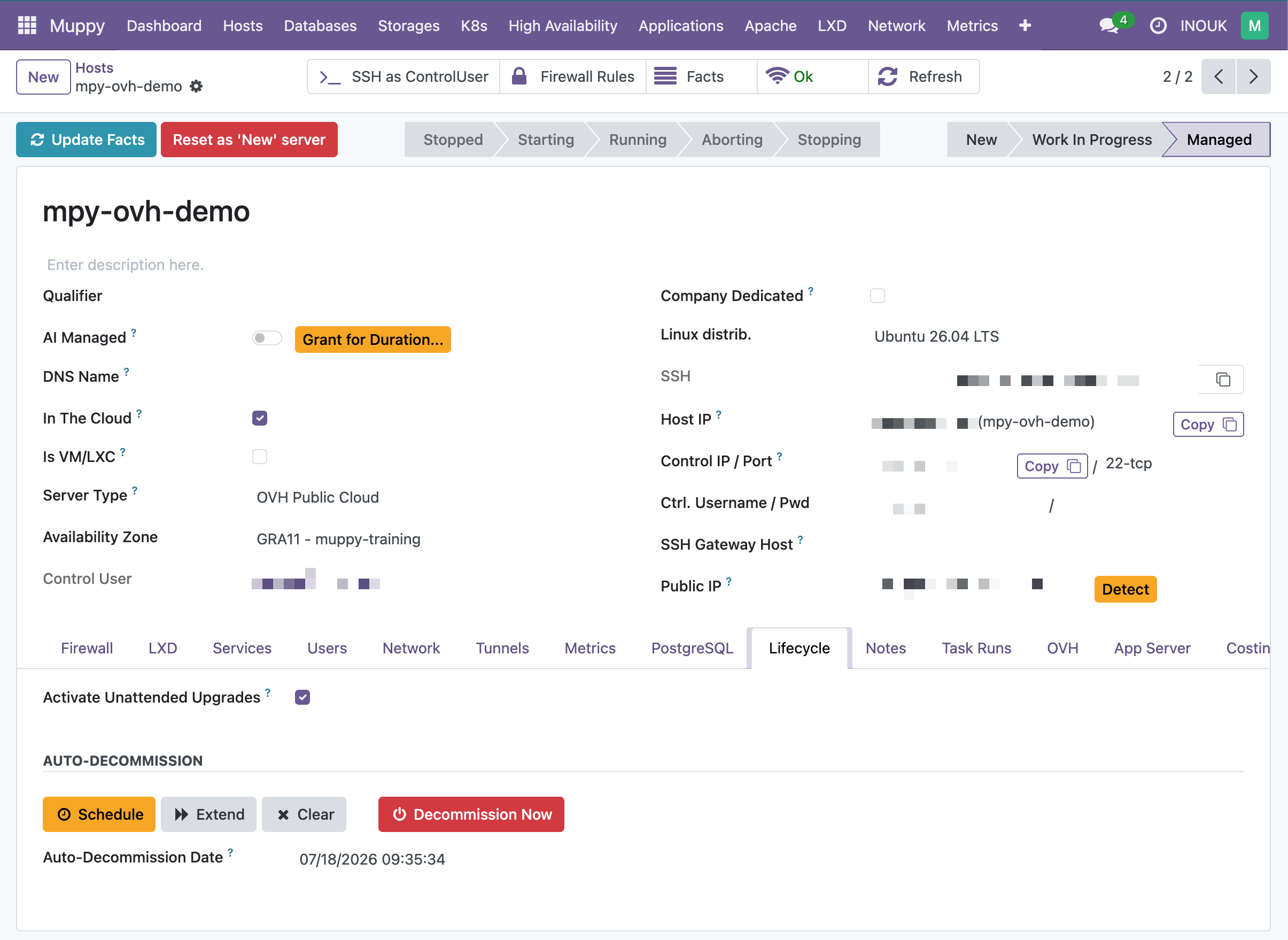
By default the scheduled date is not swept automatically (the housekeeping job is disabled unless an administrator enables it) — the date mainly documents intent and supports manual cleanup. Decommission Now always acts immediately.
Decommission deletes the OVH instance
Decommissioning an OVH Host deletes the underlying OVH instance — the VM is destroyed and billing stops — and removes the Host record from Muppy. This cannot be undone. (If the instance was already deleted on OVH, decommission still completes and just removes the record.)